February 18, 2024
My Favorite VSCode Shortcuts & Tricks of All Time
The ultimate guide to navigating VS Code like a pro with my essential shortcuts.
🌟 Level Zero: Absolute Beginner
At level zero, we're focusing on essential shortcuts that every programmer should master for a smooth coding experience. These shortcuts are not only applicable in VS Code but also in tools like Google Docs and Microsoft Word, making them universally useful.
-
Creating a New File: Instead of relying on mouse clicks, use
CTRL + Nto create a new file swiftly. -
Selecting the Whole Document: Quickly select everything with
CTRL + A. -
Mastering Text Selection:
- To select character by character, use
Shift + Left/Right Arrow. - For selecting a word at a time,
Shift + CTRL + Left/Right Arrowwill do the trick. - Selecting a whole line?
Shift + Up/Down ArroworShift + FN + Left/Right Arrowfor line selection without moving the cursor.
- To select character by character, use
🚀 Level One: Building Skills
-
Multi-Cursor Editing:
ALT + ClickorCTRL + ALT + Up/Down Arrowlets you edit multiple lines simultaneously. -
Viewing Suggestions: Forgot a Tailwind utility class?
CTRL + Spacebrings up the suggestions. -
Renaming Attributes: Use
CTRL + Shift + Lto select all occurrences of a specific term for renaming, orCTRL + Dfor selecting the next instance. -
Jumping to a Function's Definition: Use
F12to navigate directly to the definition of a function or variable. -
Reopening a Closed Tab: Accidentally closed a tab?
CTRL + Shift + Twill bring it back.
💡 Level Two: Enhancing Workflow
-
Commenting Code: Use
CTRL + /orCTRL + K, CTRL + Cto comment andCTRL + K, CTRL + Uto uncomment. -
Collapsing Functions:
CTRL + K, CTRL + 0collapses all functions, whileCTRL + K, CTRL + Junfolds them. -
Navigating Files and More:
CTRL + Pfor quick file access.>for searching commands.@to search for symbols within the current file.:followed by a line number to jump to a specific line.
🏆 Pro Level: Advanced Techniques
-
Sticky Scroll: Keep your headers visible while scrolling through your code by enabling sticky scroll in the settings.
-
Customizing Shortcuts: Modify your shortcuts in the Keyboard Shortcuts settings to suit your workflow.
-
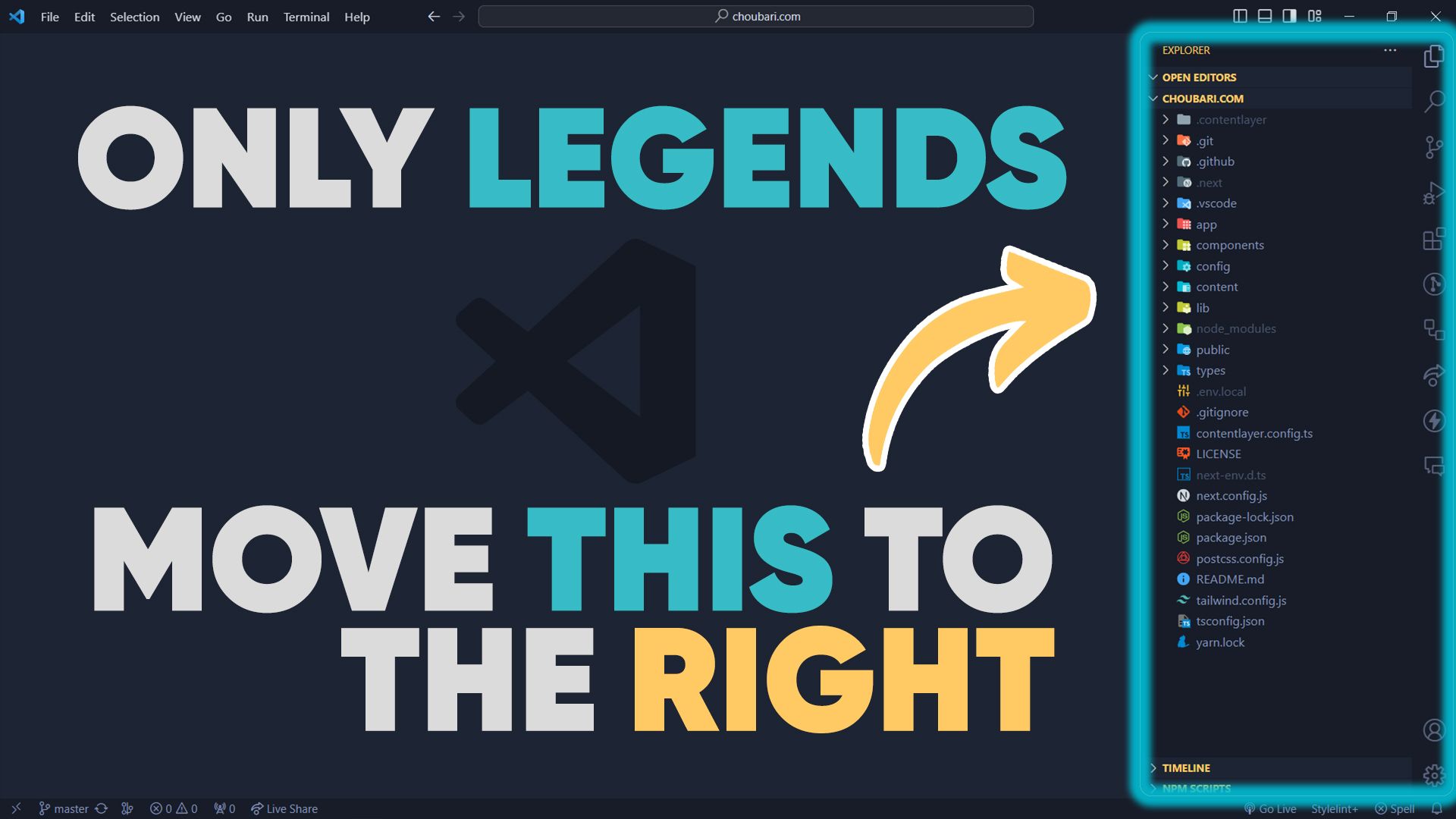
Sidebar Position: Consider moving your sidebar to the right for less layout shift and more focused coding.
That was a good decision!
Incorporating keyboard shortcuts into your workflow can significantly save time. I hope this guide enhances your efficiency in VS Code.
Share this with anyone who might find it beneficial and let me know your thoughts or any shortcuts you love!
Happy coding! 🚀